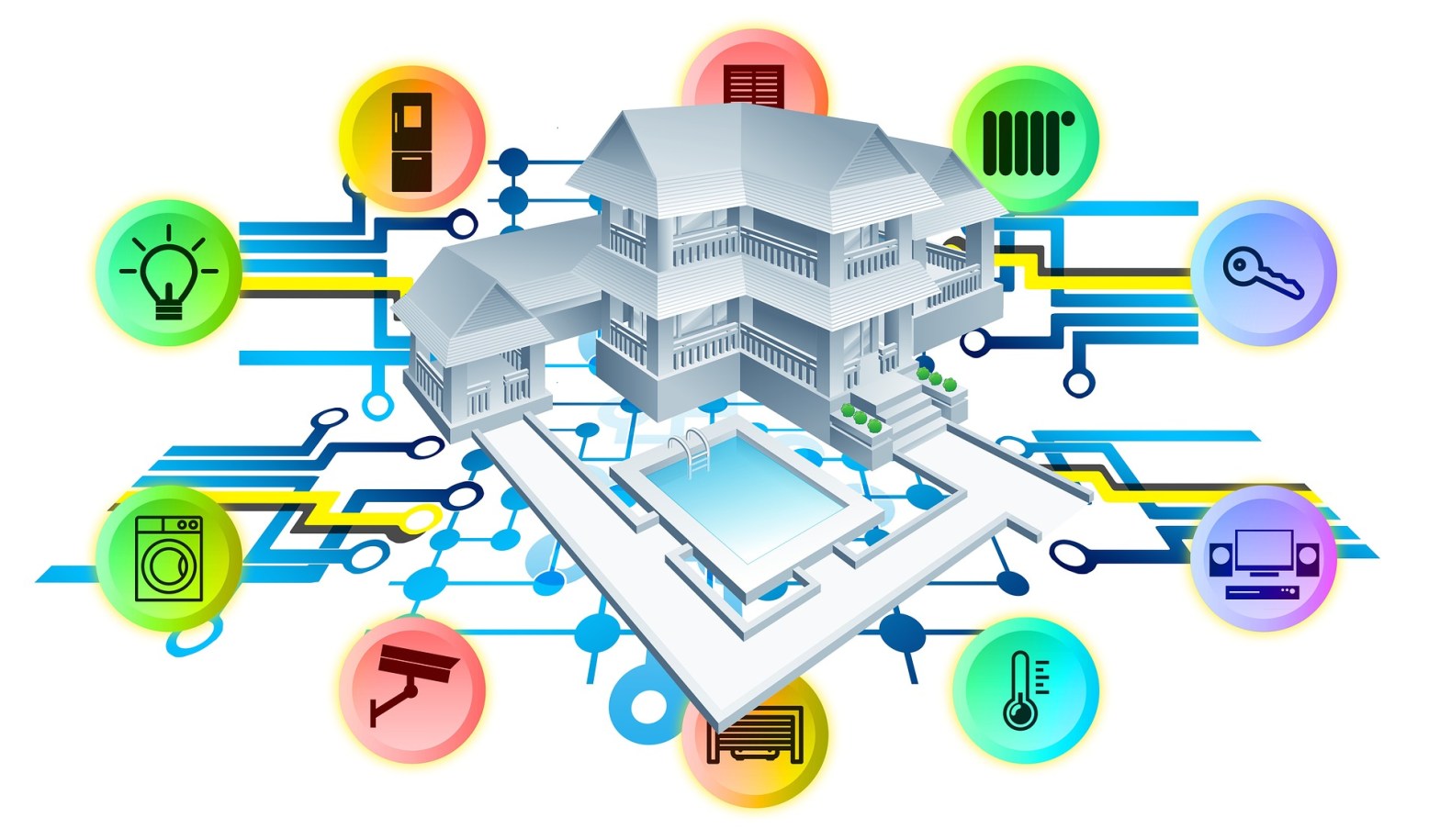
Smart home or office is a sophistication, with or without technology.
Let’s build a stable and secure, Smart home, to protect you from IoT hackers.
This will help communicate a Smart life.
When preparing an installation on a Mobile device for the first time.
Enter the Router, via the IP address found in the modem documentation or manual.
WiFi network, must be active in Main network to access Router settings.
When you change the Wi-Fi network to Guest network, the Modem router is not accessible.
Turn Off / Disable all access points under advanced settings, that can be used by hackers, to gain access to the Router.
These include, but are not limited to:
– WPS
– MAC Filtering
– DMZ
– UPnP
– Access Sharing / Folder Sharing
– Print Server (This is for a network, that can choose to share a printer)
– Bandwidth Control (Not recommended, may cause problems with data or device usage)
– IP & Mac Binding
– Access Control (Re-enable, when finished at the end of this post)
Enabled, could be a result of your Router making some Smart devices public.
Initial Setup
First point of business, Advanced / Wireless / Wireless Settings, find Hide SSID for both 2.4 GHz and 5 GHz.
Save each one, thereafter you tick the hide box.
It will hide your Wi-Fi networks’ from the public.
Restart, the Modem router.
Check, that the settings are hidden on reactivation.
Next, we need to set up a 2.4 GHz and 5 GHz Guest network.
On return, go to the Guest network menu option.
Check the boxes below:
– See each other
– Enable 2.4 GHz
– Enable 5 GHz
– Hide SSIDs
Next, you need to Set Password and Username for each (they should be different).
I recommend, using the Norton Password Generator website for new passwords and usernames.
Security options should be set to WPA / WPA2 / WPA3 Personal.
WPA2-PSK and AES should be active.
Ignore, Bandwidth Control as stated earlier.
Once complete. Save.
Restart, the Modem router.
On return, check that the settings are in accordance with the instructions.
Now copy the Guest network, Username and Password, to a Google Keep note or the Keyboard Clipboard on the Mobile device.
When done, Log Out.
Now program, Guest networks’ on your Wi-Fi Mobile device.
Add Network / Advanced options, select Hidden Network and the Phone MAC.
Check, that the connection is active and getting the Internet connection.
Return to Google Home page, and then clear Web Browser history, via settings menu.
Restart, the Mobile device to clear the cache.
Main Setup
We are going to set up the IoT Smart devices.
First, we need to factory reset all Google or Smart devices, that allow this.
Thus the installation will become hassle-free and easy.
Then, set up devices as below.
5 GHz | Main Network
Add, the Gamers Console, Chromecast Ultra or Smart TV on the same Main network connection, along with the Computer, Tablet or Mobile.
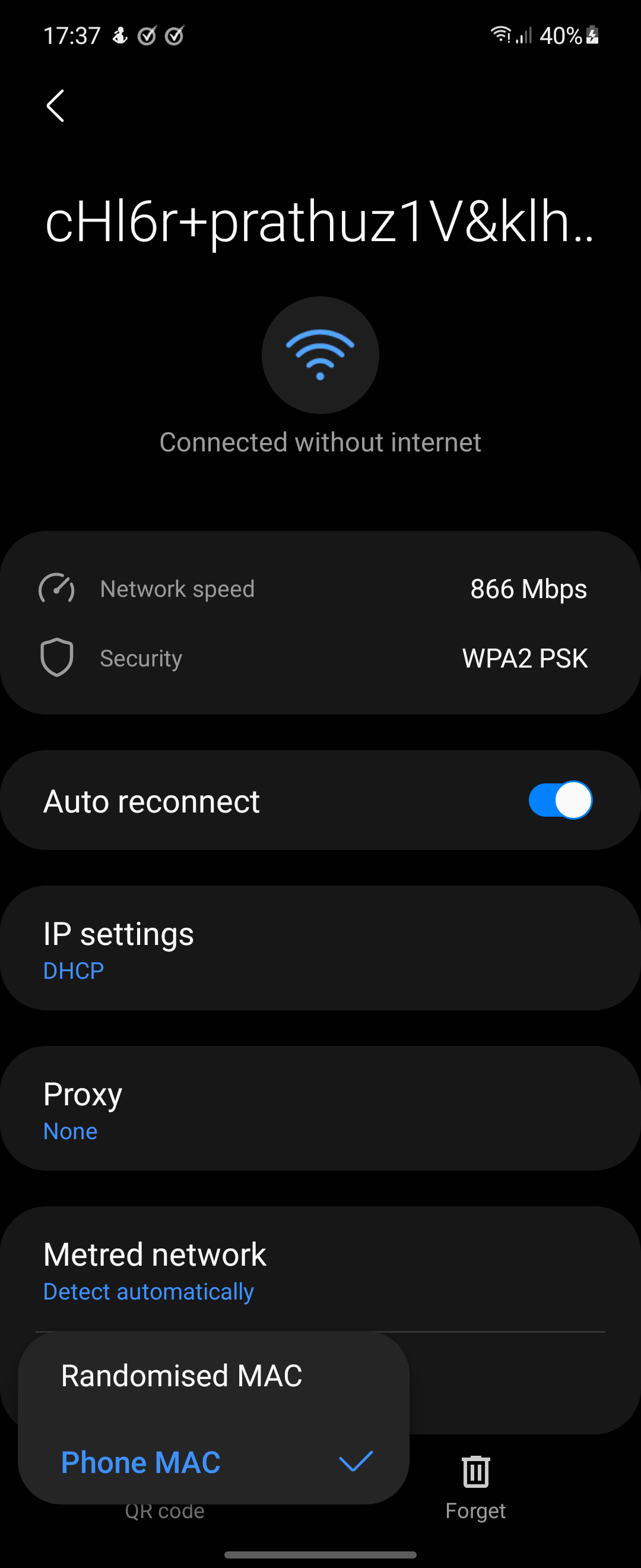
The above items, should have the MAC Address Type set to Device MAC, instead of Randomised MAC.
Because, the Access Control cannot connect a Device WiFi network on Randomised MAC, whilst the Whitelist is active.
Note: Older devices, won’t use Randomised MAC.
Setup on Home or Other app, the Smart Speaker’s on this network.
Speaker’s, can be added to a Group called ‘Speakers’, under the Home app +.
Don’t enable ‘Voice control and more’, when available.
This will result in operational dominance of a single speaker, rather than individual use.
Yes, you can change Spotify playlist with the Speaker’s active, this link will remain.
You can pair a theater setup for surround sound, only.
Restart, the Modem router and Mobile to lock-in the device.
2.4 GHz | Main Network
Any, Wi-Fi lockable device mentioned above, and that’s not 5 GHz (nothing else, no generic IoT devices).
Restart, the modem router and mobile to lock-in device.
2.4 GHz Guest Network
To set up the Guest network device, you will need to switch to that Wi-Fi network.
Mobile device, should have the MAC Address Type set to Device MAC, instead of Randomised MAC.
Note: Older devices, won’t use the Randomised MAC.
Open the app associated with the smart device, such as Smart Life, Tuya, Hue, Habitat or Smart Things.
Add, new device. While the light is flashing.
Hold+Reset button for 15 seconds to pair.
Connect all common IoT 2.4GHz smart devices here, such as the Panel, Nest, Hub, Plug, Light, Camera, Oven, Dishwasher, Fridge, Automatic opener etc.
Restart, the Modem router and Mobile to lock-in device.
Final
Enter the Router, via the IP address found in the modem documentation or manual.
Wi-Fi network, must be active in Main network, to Mobile access router settings.
Last point of business, Advance / Security / Access Control, find default Access Mode.
Whitelist, select the option.
At the bottom, you will see a list of Online Devices.
Add, all Device Name and MAC Address of each to the Whitelist (make sure, the Mobile device is added).
When done, Save.
Enable the Access Control, and then wait 30 seconds, save again.
Now, restart the modem router.
Sign out.
Delete the Guest network, Username and Passwords from the Mobile device, such is no longer needed.
Return, to Google Home page and then clear Web Browser history.
Restart, the Mobile to clear the cache.
All ok.
Don’t forget to setup Home, Alexa and or Bixby links for IoT devices.
Congratulations! on a stable and secure, Smart home.
For additional protection, I recommend subscribing to Norton 360 app.
Set, all the networks as Home, under Wi-Fi Security on Norton.
Brett Hutton
== References ==
Protonumus [Website]
Protonumus | Channel [YouTube]
Norton Password Generator [Website]
 Protonumus
You must be logged in to post a comment.